Git的使用方法
一、Git是什么?
Git是目前世界上最先进的分布式版本控制系统。
工作原理 / 流程:
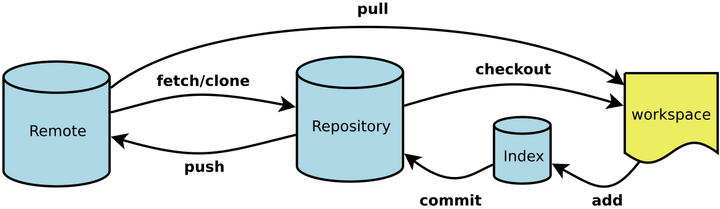
Workspace:工作区
Index / Stage:暂存区
Repository:仓库区(或本地仓库)
Remote:远程仓库
二、创建Git仓库
1、初始化一个空的仓库
mkdir repo && cd repo
git init
2、拉取远程仓库
git clone https://github.com/username/package.git
cd package
三、Git仓库状态查看和代码提交
- 查看当前Git仓库中代码的更改情况,用于显示工作目录和暂存区的状态
git status
- 将工作区内容写入暂存区
git add [file1] [file2] ...
或者
git add [dir]
特别地,将所有文件全部提交到暂存区
git add .
- 提交暂存区代码到本地仓库
git commit -m [message]
同样地,也可以提交指定文件到仓库区
git commit [file1] [file2] ... -m [message]
-a 参数设置修改文件后不需要执行 git add 命令,直接来提交
git commit -a
四、配置用户信息
在将暂存区代码添加到本地仓库时,即git commit时,需要提前配置好git账户信息,配置账户信息有两种方式:全局配置和本地配置
- 本地配置
git config user.name 'username'
git config user.email 'emailaddress'
- 全局配置
git config --global user.name 'username'
git config --global user.email 'account.@qq.com'
五、分支管理
- 查看当前本地分支
git branch
- 创建分支
git branch (branchname)
- 切换分支
git checkout -b (branchname)
切换分支时,Git会用该分支的最后提交的快照替换工作目录的内容,所有多个分支不需要多个目录,合并分支命令:
git merge
- 删除分支
git branch -d (branchname)
六、.gitignore忽略文件
忽略规则是对文件名有效的;
-
空行或#号开始的行,会被忽略;
-
可以使用通配符:
*任意字符;
?单个字符;
[abc]多种可能的字符a、b或c;
[a-z0-9]表示在某个范围内进行匹配;\转义字符;!表示取反(不忽略),写在某条规则的前面; -
路径分隔符"/";如果"/"后面的名称是个目录,则该目录以及该目录下的所有文件都会被忽略;如果"/"后面的名称是个文件,则该文件不会被忽略;
例如: /name
如果name是个目录,则目录name和name下的所有文件都会被忽略;如果name是个文件,则该文件不会被忽略; -
.gitignore文件也可以忽略自己,只要把自己的名字写进来即可;
-
: 一条(行)忽略规则只对某一个目录下的文件有效,而对该目录下的子目录中的文件无效;
-
一条(行)忽略规则也可以只对单个文件有效(忽略单个指定的文件);
七、查看提交日志
一、不带参数
如果不带任何参数,它会列出所有历史记录,最近的排在最上方,显示提交对象的哈希值,作者、提交日期、和提交说明 如果记录过多,则按Page Up、Page Down、↓、↑来控制显示 按q退出历史记录列表
二、显示参数
- -p:按补丁显示每个更新间的差异,比下一条
- -stat命令信息更全 --stat:显示每次更新的修改文件的统计信息,每个提交都列出了修改过的文件,以及其中添加和移除的行数,并在最后列出所有增减行数小计
- --shortstat:只显示--stat中最后的行数添加修改删除统计
- --name-only:尽在已修改的提交信息后显示文件清单
- --name-status:显示新增、修改和删除的文件清单
- --abbrev-commit:仅显示SHA-1的前几个字符,而非所有的40个字符
- --relative-date:使用较短的相对时间显示(例如:"two weeks ago")
- --graph:显示ASCII图形表示的分支合并历史
- --pretty=:使用其他格式显示历史提交信息,可选项有:oneline,short,medium,full,fuller,email,raw以及format:
,默认为medium,如: - --pretty=oneline:一行显示,只显示哈希值和提交说明(--online本身也可以作为单独的属性)
- --pretty=format:” ":控制显示的记录格式,如: %H 提交对象(commit)的完整哈希字串 %h 提交对象的简短哈希字串 %T 树对象(tree)的完整哈希字串 %t 树对象的简短哈希字串 %P 父对象(parent)的完整哈希字串 %p 父对象的简短哈希字串 %an 作者(author)的名字 %ae 作者的电子邮件地址 %ad 作者修订日期(可以用 -date= 选项定制格式) %ar 作者修订日期,按多久以前的方式显示 %cn 提交者(committer)的名字 作者和提交者的区别不知道是啥? 作者与提交者的关系:作者是程序的修改者,提交者是代码提交人(自己的修改不提交是怎么能让别人拉下来再提交的?) 其实作者指的是实际作出修改的人,提交者指的是最后将此工作成果提交到仓库的人。所以,当你为某个项目发布补丁,然后某个核心成员将你的补丁并入项目时,你就是作者,而那个核心成员就是提交者(soga) %ce 提交者的电子邮件地址 %cd 提交日期(可以用 -date= 选项定制格式) %cr 提交日期,按多久以前的方式显示 %s 提交说明 带颜色的
- --pretty=format:” ",这个另外写出来分析 以这句为例:%Cred%h%Creset -%C(yellow)%d%Cblue %s %Cgreen(%cd) %C(bold blue)<%an> 它的效果是: 先断句:[%Cred%h][%Creset -][%C(yellow)%d ][%Cblue%s][%Cgreen(%cd)][%C(bold blue)<%an>] 然后就是很明显能得到的规律了 一个颜色+一个内容 颜色以%C开头,后边接几种颜色,还可以设置字体,如果要设置字体的话,要一块加个括号 能设置的颜色值包括:reset(默认的灰色),normal, black, red, green, yellow, blue, magenta, cyan, white. 字体属性则有bold, dim, ul, blink, reverse. 内容可以是占位元字符,也可以是直接显示的普通字符
- --date= (relative|local|default|iso|rfc|short|raw):定制后边如果出现%ad或%cd时的日期格式 有几个默认选项
- --date=relative:shows dates relative to the current time, e.g. "2 hours ago".
- --date=local:shows timestamps in user’s local timezone. --date=iso (or --date=iso8601):shows timestamps in ISO 8601 format.
- --date=rfc (or --date=rfc2822):shows timestamps in RFC 2822 format,often found in E-mail messages.
- --date=short:shows only date but not time, in YYYY-MM-DD format.这个挺好用 --date=raw:shows the date in the internal raw git format %s %z format.
- --date=default:shows timestamps in the original timezone (either committer’s or author’s). 也可以自定义格式(需要git版本2.6.0以上),比如
- --date=format:'%Y-%m-%d %H:%M:%S' 会格式化成:2016-01-13 11:32:13,其他的格式化占位符如下:
- %a:Abbreviated weekday name
- %A:Full weekday name
- %b:Abbreviated month name
- %B:Full month name
- %c:Date and time representation appropriate for locale
- %d:Day of month as decimal number (01 – 31)
- %H: Hour in 24-hour format (00 – 23)
- %I:Hour in 12-hour format (01 – 12)
- %j:Day of year as decimal number (001 – 366)
- %m:Month as decimal number (01 – 12)
- %M:Minute as decimal number (00 – 59)
- %p:Current locale's A.M./P.M. indicator for 12-hour clock
- %S:Second as decimal number (00 – 59)
- %U:Week of year as decimal number, with Sunday as first day of week (00 – 53)
- %w:Weekday as decimal number (0 – 6; Sunday is 0)
- %W:Week of year as decimal number, with Monday as first day of week (00 – 53)
- %x:Date representation for current locale
- %X:Time representation for current locale
- %y:Year without century, as decimal number (00 – 99)
- %Y:Year with century, as decimal number
- %z, %Z:Either the time-zone name or time zone abbreviation, depending on registry settings; no characters if time zone is unknown
- %%:Percent sign
三、筛选参数
-
按数量
- -n:显示前n条log
-
按日期
- --after= 比如git log --after="2014-7-1”,显示2014年7月1号之后的commit(包含7月1号) 后边的日期还可以用相对时间表示,比如"1 week ago"和”yesterday",比如git log --after="yesterday" 这里的格式可以是什么?
- --before= 同上 另外这两条命令可以同时使用表示时间段,比如git log --after="2014-7-1" --before="2014-7-4" 另外--since --until和 --after --before是一个意思,都可以用
-
按作者
- --author= 比如git log --author=“John",显示John贡献的commit 注意:作者名不需要精确匹配,只需要包含就行了 而且:可以使用正则表达式,比如git log --author="John|Mary”,搜索Marry和John贡献的commit 而且:这个--author不仅包含名还包含email, 所以你可以用这个搜索email
-
按commit描述
- --grep=
- 比如:git log --grep="JRA-224" 而且:可以传入-i用来忽略大小写 注意:如果想同时使用--grep和--author,必须在附加一个--all-match参数
- --grep=
-
按文件
- -(空格)或[没有]
- 有时你可能只对某个文件的修改感兴趣, 你只想查看跟某个文件相关的历史信息, 你只需要插入你感兴趣文件的路径[对,是路径,所以经常是不太好用]就可以了 比如:git log -- foo.py bar.py ,只返回和foo.py或bar.py相关的commit 这里的--是告诉Git后面的参数是文件路径而不是branch的名字. 如果后面的文件路径不会和某个branch产生混淆, 你可以省略- -,比如git log foo.py 另外,后边的路径还支持正则,比如:git log *install.md 是,指定项目路径下的所有以install.md结尾的文件的提交历史 另外,文件名应该放到参数的最后位置,通常在前面加上--并用空格隔开表示是文件 另外,git log file/ 查看file文件夹下所有文件的提交记录
- -(空格)或[没有]
-
按分支 - -
- --branchName branchName为任意一个分支名字,查看某个分支上的提交记录 需要放到参数中的最后位置处 如果分支名与文件名相同,系统会提示错 误,可通过--选项来指定给定的参数是分支名还是文件名
- 比如:在当前分支中有一个名为v1的文件,同时还存在一个名为v1的分支
- git log v1 -- 此时的v1代表的是分支名字(--后边是空的)
- git log -- v1 此时的v1代表的是名为v1的文件
- git log v1 -- v1 代表v1分支下的v1文件
- --branchName branchName为任意一个分支名字,查看某个分支上的提交记录 需要放到参数中的最后位置处 如果分支名与文件名相同,系统会提示错 误,可通过--选项来指定给定的参数是分支名还是文件名
-
按内容 -S"
"、-G" " - 有时你想搜索和新增或删除某行代码相关的commit. 可以使用这条命令 假设你想知道Hello, World!这句话是什么时候加入到项目里去的,可以用:git log -S"Hello,World!" 另外:如果你想使用正则表达式去匹配而不是字符串, 那么你可以使用-G代替-S. 这是一个非常有用的debug工具, 使用他你可以定位所有跟某行代码相关的commit. 甚至可以查看某行是什么时候被copy的, 什么时候移到另外一个文件中去的 注:-S后没有"=",与查询内容之间也没有空格符
-
按范围
- git log
.. - 这个命令可以查看某个范围的commit
- 这个命令非常有用当你使用branch做为range参数的时候. 能很方便的显示2个branch之间的不同
- 比如:git log master..feature,master..feature这个range包含了在feature有而在master没有的所有commit,同样,如果是feature..master包含所有master有但是feature没有的commit
- 另外,如果是三个点,表示或的意思:git log master...test 查询master或test分支中的提交记录
- git log
-
过滤掉merge commit
-
--no-merges 默认情况下git log会输出merge commit. 你可以通过--no-merges标记来过滤掉merge commit,
-
git log --no-merges 另外,如果你只对merge commit感兴趣可以使用—merges,git log --merges
-
-
按标签tag
- git log v1.0
- 直接这样是查询标签之前的commit
- 加两个点git log v1.0.. 查询从v1.0以后的提交历史记录(不包含v1.0)
- git log v1.0
-
按commit
- git log commit :查询commit之前的记录,包含commit
- git log commit1 commit2:查询commit1与commit2之间的记录,包括commit1和commit2
- git log commit1..commit2:同上,但是不包括commit1 其中,commit可以是提交哈希值的简写模式,也可以使用HEAD代替 HEAD代表最后一次提交,HEAD^为最后一个提交的父提交,等同于HEAD~1 HEAD~2代表倒数第二次提交
四、日志输入配置
git config --global alias.lm  "log --no-merges --color --date=format:'%Y-%m-%d %H:%M:%S' --author='你的名字!自己修改!' --pretty=format:'%Cred%h%Creset -%C(yellow)%d%Cblue %s %Cgreen(%cd) %C(bold blue)<%an>%Creset' --abbrev-commit"


git config --global alias.lms  "log --no-merges --color --stat --date=format:'%Y-%m-%d %H:%M:%S' --author='你的名字!自己修改!' --pretty=format:'%Cred%h%Creset -%C(yellow)%d%Cblue %s %Cgreen(%cd) %C(bold blue)<%an>%Creset' --abbrev-commit"


git config --global alias.ls "log --no-merges --color --graph --date=format:'%Y-%m-%d %H:%M:%S' --pretty=format:'%Cred%h%Creset -%C(yellow)%d%Cblue %s %Cgreen(%cd) %C(bold blue)<%an>%Creset' --abbrev-commit"


git config --global alias.lss "log --no-merges --color --stat --graph --date=format:'%Y-%m-%d %H:%M:%S' --pretty=format:'%Cred%h%Creset -%C(yellow)%d%Cblue %s %Cgreen(%cd) %C(bold blue)<%an>%Creset' --abbrev-commit"